NewsStrikey
I still remember the first time someone asked me “have you tried Gemini yet?” and I genuinely thought they were talking about the zodiac sign. That was a while back. Today, Gemini is sitting on my phone, inside my Gmail, inside my Docs, and honestly, inside most of my daily workflow whether I plan for it or not. So if you’ve landed here typing what’s Gemini into Google, trust me, you’re not behind. A lot of people are still figuring this out, and I was one of them not too long ago.
In this post, I’m going to break it down the way I wish someone had explained it to me — based on actually using it, not just reading a press release. I’ll also walk you through the newest stuff Google has rolled out recently, because honestly, the tool changes so fast that even I have to keep checking back.
By the end of this, you’ll know exactly what Gemini is, what it can do, what’s genuinely useful versus hype, and whether it’s worth your time.
What’s Gemini, Really? (Breaking It Down Simply)
Let’s start at the very beginning because I think this is where most explanations go wrong — they assume you already know.
In the simplest terms, Gemini is Google’s family of AI models. Not one single app, not one single chatbot — a whole system of AI that now powers a huge chunk of Google’s products. So when someone says “I used Gemini,” they could mean they opened the Gemini app, or they could mean they used the AI overview in Google Search, or even that they asked their Android phone to summarize a text thread. All of that runs on Gemini under the hood.
Here’s the distinction that helped it finally click for me: a search engine finds information for you, but Gemini actually understands your request, reasons through it, and generates a response — text, image, even video depending on what you ask for. It’s less “librarian fetching a book” and more “assistant sitting next to you, doing the thinking with you.”
I remember the very first task I tried it on. I had a messy spreadsheet of expenses I’d been avoiding for weeks, and instead of doing it manually, I just described what I wanted in plain English. It cleaned it up, categorized it, and even pointed out a few odd recurring charges I hadn’t noticed. That was the moment I stopped thinking of it as “just another chatbot.”
Here’s where you’ll actually run into Gemini today:
- The Gemini app — on web, Android, and iOS, this is the main chat-style interface
- Google Search — AI-powered overviews and the conversational “AI Mode” search box
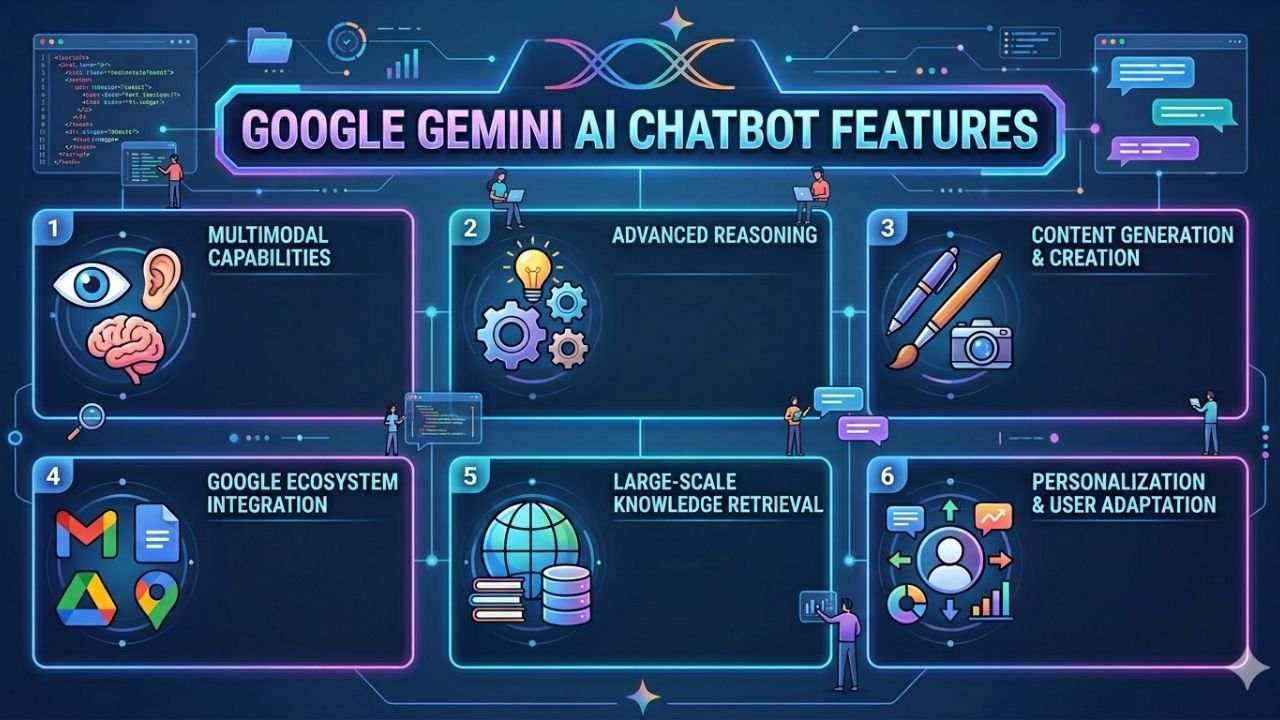
- Google Workspace — Docs, Sheets, Gmail, Slides, Keep
- Android phones — built directly into the OS, not just an app you open
- Chrome browser — assisting while you browse
- Google TV — yes, even your television now
- Google Maps — for trip planning and local discovery
So when people ask what’s Gemini in one sentence, I usually say: it’s Google’s AI brain, woven into almost everything Google makes.
My Personal Journey With Gemini (Why I Started Using It)
I’ll be honest, I didn’t jump on Gemini right away. I’d already been using another AI chatbot for months and didn’t see the point of switching. What actually pulled me in was laziness, if I’m being truthful — I didn’t want to keep switching tabs between Search, Gmail, and a separate AI tool when Google was offering all of it in one place.
My first real impressions were mixed. The writing felt a bit more “formal” compared to what I was used to, and early on, I noticed it sometimes struggled with longer back-and-forth conversations where it had to remember earlier context. But what won me over was how naturally it tied into stuff I was already doing — drafting an email in Gmail and having it suggest a tone shift, or asking it to pull info directly from a Doc I had open without copy-pasting anything.
Compared to other AI tools I’d tried, the biggest difference I noticed was how “embedded” it felt. Other tools live in their own little bubble. Gemini behaves more like it’s quietly sitting inside everything you’re already doing, ready when you need it.
That’s really when I stopped asking “what’s Gemini” out of curiosity and started asking “how much of my day can I actually hand off to it.”
There was also a learning curve I didn’t expect. The first couple of weeks, I kept treating it like a search bar — typing short, keyword-style queries instead of actual sentences. The results were fine, but nothing special. It wasn’t until I started writing it full questions, the way I’d explain something to a colleague, that I noticed a real jump in quality. That shift in how I prompted it made a bigger difference than any single feature update I’ve seen since.
I also went through a phase of over-relying on it, which I’d warn anyone against. There was a week where I let it draft an entire client email without reading it closely enough, and a couple of details came out slightly off. Nothing disastrous, but it taught me to treat it as a fast first draft, not a finished product. That one mistake shaped how I use it today — I let it do the heavy lifting, but the final read-through is always mine.
How Gemini Actually Works (In Simple Terms)
I’m not going to pretend I fully understand the deep technical architecture, and honestly, you don’t need to either. Here’s the simplified version that’s helped me use it better.
Gemini isn’t one single model — it’s a range of models, each tuned for different jobs. Some are built for speed, some for heavier reasoning, and the newer ones are built to actually take actions on your behalf rather than just answering questions.
It’s also “multimodal,” which is a fancy way of saying it can understand more than just text. You can hand it an image, a voice note, a video, or a document, and it can work across all of those formats — sometimes even mixing them in a single response.
Here’s a simple breakdown of the model tiers as I understand them from actually using them:
| Model Tier | Best For | Speed | My Use Case |
|---|---|---|---|
| Flash models | Quick everyday tasks, fast replies | Very fast | Quick emails, fast searches, simple edits |
| Pro models | Deeper reasoning, longer tasks | Moderate | Research, detailed writing, planning |
| Omni models | Creating across formats (text, image, video) | Varies | Content creation, generating visuals from prompts |
What you can feed into Gemini, from my own daily use:
- Plain text prompts and questions
- Uploaded images for analysis or editing
- Voice input (genuinely useful while multitasking)
- Documents and spreadsheets for summarizing or restructuring
- Video clips, for the newer creation-focused models
Google Gemini New Features (2026 Updates I’ve Actually Tried)
This is the part I get asked about the most, because Google ships updates so often that even regular users lose track. Here’s what’s new with Google Gemini new features that I’ve personally tested or seen rolling out recently.
Gemini 3.5 Flash and Gemini 3.5 Pro
The newest Flash model is built to be both fast and “agentic,” meaning it doesn’t just answer your question, it can actually go complete multi-step tasks for you. I’ve used it for coding-adjacent tasks and quick research pulls, and the speed difference compared to older versions is noticeable — responses come back almost instantly even on more complex prompts. The Pro version, aimed at heavier reasoning tasks, is rolling out a bit more gradually, but early access has shown it handling longer, more layered requests with better consistency than before.
Gemini Omni
This one genuinely surprised me. Omni is built around the idea of creating content from almost any input — describe something, and it can generate video, images, or other media based on that description, alongside its reasoning abilities. I tried it for a small personal project — turning a rough written outline into a short visual concept — and it handled the translation between “idea” and “visual” far better than I expected from a first attempt.
Neural Expressive Design
Less of a “feature” and more of a vibe shift, but worth mentioning because it changes how using Gemini actually feels. The app’s interface got a redesign with smoother animations, richer colors, haptic feedback, and updated typography. It sounds cosmetic, but after using it for a few weeks, the app genuinely feels less clunky and more like a polished consumer product than a tech demo.
SynthID and C2PA Content Verification
This is one of the more important updates from a trust standpoint. Gemini now helps verify whether content — images, in particular — is an original capture or has been altered by AI tools. It started inside the Gemini app and is gradually expanding to Search and Chrome. As someone who deals with a fair bit of visual content, I’ve found this genuinely useful for quickly checking whether an image I’ve come across online has been manipulated.
Proactive, Agent-Style Assistance
Instead of waiting for you to ask something, newer Gemini features lean into being proactive — quietly managing your inbox, surfacing reminders, and anticipating tasks before you ask. I noticed this most clearly in Gmail, where it started suggesting draft replies based on context I hadn’t even fully typed out yet.
Here’s a quick-glance table of these updates:
| Feature | What It Does | Where I’ve Seen It |
|---|---|---|
| Gemini 3.5 Flash | Fast, agentic task completion | Gemini app, Search, API |
| Gemini 3.5 Pro | Deeper reasoning for complex tasks | Gemini app (rolling out) |
| Gemini Omni | Multimodal content creation | Gemini app |
| Neural Expressive design | Refreshed app look and feel | Gemini app |
| SynthID / C2PA verification | Detects AI-altered content | Gemini app, expanding to Search & Chrome |
| Proactive agent features | Background task management | Gmail, Docs, Android |
What’s Gemini Useful For? (Real Use Cases From My Own Workflow)
People often ask what’s Gemini actually good for, beyond the headline features. So here’s what it actually replaces in my own day-to-day routine.
1. Writing
I use it for drafting emails, rephrasing awkward sentences, and getting a second opinion on tone before hitting send. It’s saved me from a few too-blunt messages.
2. Research
Instead of opening ten tabs, I describe what I’m trying to figure out and let it pull together a starting point, which I then verify myself. It’s a starting point, not a final answer — I always double-check anything factual.
3. Coding and Agentic Tasks
I’m not a developer by trade, but I’ve used it to debug small scripts and automate repetitive steps. The newer agentic abilities mean it can carry out a sequence of steps rather than just suggesting code snippets one at a time.
4. Image and Video Creation
With Omni, I’ve experimented with turning written ideas into rough visual drafts, which has been genuinely handy for early-stage content planning.
5. Daily Productivity
This is the underrated one. Quick reminders, summarizing long email threads, pulling key points out of a document before a meeting — small things that add up over a week.
6. Travel and Planning
I didn’t expect to use it for this, but I’ve started leaning on it whenever I’m putting together a trip. Instead of jumping between Maps, reviews, and a notes app, I describe the kind of trip I want and let it pull together a rough itinerary, which I then tweak myself. It’s not perfect at predicting what I’ll actually enjoy, but it removes the blank-page problem of where to even start.
7. Learning New Things
Whenever I’m trying to understand a topic I know nothing about, I’ll ask it to explain things at a beginner level first, then go deeper with follow-up questions. It’s replaced a fair number of my “how does X work” searches, mainly because I can keep asking follow-ups in the same thread instead of opening five different articles.
Gemini in Google Search, Workspace, and Android — My Experience
Gemini in Search (AI Mode)
The conversational search box now expands as you type, picking up on longer, more natural questions instead of forcing you into keyword-style searching. I’ve found myself typing full questions the way I’d ask a person, and getting genuinely relevant answers instead of a list of links to dig through myself.
Gemini in Workspace
Inside Docs, Sheets, and Gmail, it acts almost like a quiet co-author. I’ll ask it to summarize a long Doc before a meeting, or clean up a messy Sheet, and it does the grunt work I used to put off.
Gemini on Android
This is the integration that surprised me most. It’s not just an app icon anymore — it understands context across your phone, can turn spoken thoughts into cleaned-up text, and proactively suggests actions based on what you’re doing. The first time it suggested a calendar event based on a text conversation, it genuinely caught me off guard.
Google Gemini New Features vs Older Versions (What Changed)
If you used Gemini a year or so ago and stepped away, here’s a simple comparison of what’s actually different now.
| Aspect | Older Gemini | Current Gemini |
|---|---|---|
| Speed | Noticeably slower on complex prompts | Much faster, especially Flash models |
| Task handling | Mostly single-step Q&A | Multi-step, agentic task completion |
| Content creation | Limited to text and basic images | Full multimodal creation with Omni |
| Interface | Functional but plain | Neural Expressive design, smoother UX |
| Trust and verification | Minimal built-in tools | SynthID and C2PA content checks |
| Integration | App-focused | Deeply embedded across Search, Workspace, Android, TV |
Is Gemini Worth Using? (Pros and Cons From Personal Use)
I try to stay balanced here, because no tool is perfect, and I’ve hit my fair share of frustrating moments too.
Pros, based on my own experience:
- Feels deeply integrated rather than like a separate app you have to remember to open
- Multimodal abilities genuinely save time on creative tasks
- Newer models are noticeably faster than earlier versions
- Free tier is generous enough for everyday use
- Proactive features actually catch things I’d have missed
Cons I’ve personally run into:
- Occasionally over-confident on factual questions, so I still verify important details myself
- Some newer features roll out gradually, so availability can feel inconsistent depending on region or device
- Heavier reasoning tasks can still take a noticeable pause compared to quick Flash responses
- The sheer number of features and model names can be confusing for a casual user
My honest verdict: it’s worth using, especially if you’re already deep in the Google ecosystem. If you barely use Gmail or Docs, the value proposition shrinks a bit, but for most people, it’s become quietly essential.
What tipped the scale for me wasn’t any single flashy feature — it was the accumulation of small time savings across an ordinary day. None of those moments feel dramatic on their own, but added up over a few weeks, they genuinely changed how much mental energy I had left for the parts of my work that actually need a human touch.
Gemini Pricing — Free vs Paid Plans (What I’d Recommend)
| Plan | Rough Price | What You Get | Best For |
|---|---|---|---|
| Free | $0 | Core chat features, basic access to models | Casual, everyday use |
| AI Plus | Mid-tier paid | Higher usage limits, more model access | Regular users wanting more headroom |
| AI Pro | Higher paid tier | Expanded limits, priority access to newer models | Power users, professionals |
| AI Ultra | Premium, around $100/month | Full access to the most advanced models and features first | Heavy users, early adopters who want everything immediately |
I personally sit on a mid-tier plan. The free version is genuinely usable for most casual needs, but once I started relying on it for actual work tasks, the usage limits pushed me to upgrade. Unless you’re using it heavily for professional or creative work, you likely don’t need the top-tier plan right away.
Tips for Getting the Most Out of Gemini (Lessons I Learned the Hard Way)
- Be specific in your prompts — vague questions get vague answers
- Use voice input when you’re multitasking; it’s faster than typing on mobile
- Always fact-check anything that matters, especially numbers, dates, or citations
- Let it handle the first draft, then edit rather than expecting a perfect final output
- Explore the Workspace integrations before assuming you need the standalone app for everything
- Keep an eye on new feature rollouts, since availability varies by region and device
Frequently Asked Questions About Gemini
Q1. What’s Gemini used for?
It’s used for everything from writing and research to image and video creation, coding help, and everyday productivity tasks across Google’s apps.
Q2. Is Gemini free?
Yes, there’s a free tier with core features. Paid plans unlock higher usage limits and earlier access to newer models.
Q3. What’s the difference between Gemini and other AI chatbots?
The biggest difference, from my experience, is how deeply it’s woven into Google’s existing products rather than existing as a standalone tool.
Q4. What are Google Gemini’s new features in 2026?
The most notable recent additions include the Gemini 3.5 Flash and Pro models, Gemini Omni for multimodal content creation, a redesigned interface, and built-in content verification tools.
Q5. Is Gemini safe to use?
Like any AI tool, it’s generally safe for everyday tasks, but I’d avoid feeding it highly sensitive personal information, and always double-check anything factual it tells you.
Final Thoughts — My Honest Opinion on Gemini
After using it for months now, my answer to what’s Gemini has shifted from “some new Google chatbot” to “the quiet assistant running in the background of most things I do online.” It’s not flawless, and I don’t treat its answers as gospel, but it’s earned a permanent spot in my daily routine.
If you’re still on the fence, my honest suggestion is to just open the app or try AI Mode in Search the next time you’d normally type a quick question. You’ll get a feel for it faster than reading any explanation, mine included. And if Google keeps shipping updates at this pace, whatever I’ve described here will probably look a little dated again in a few months — which, in a strange way, is exactly what makes it worth keeping an eye on.
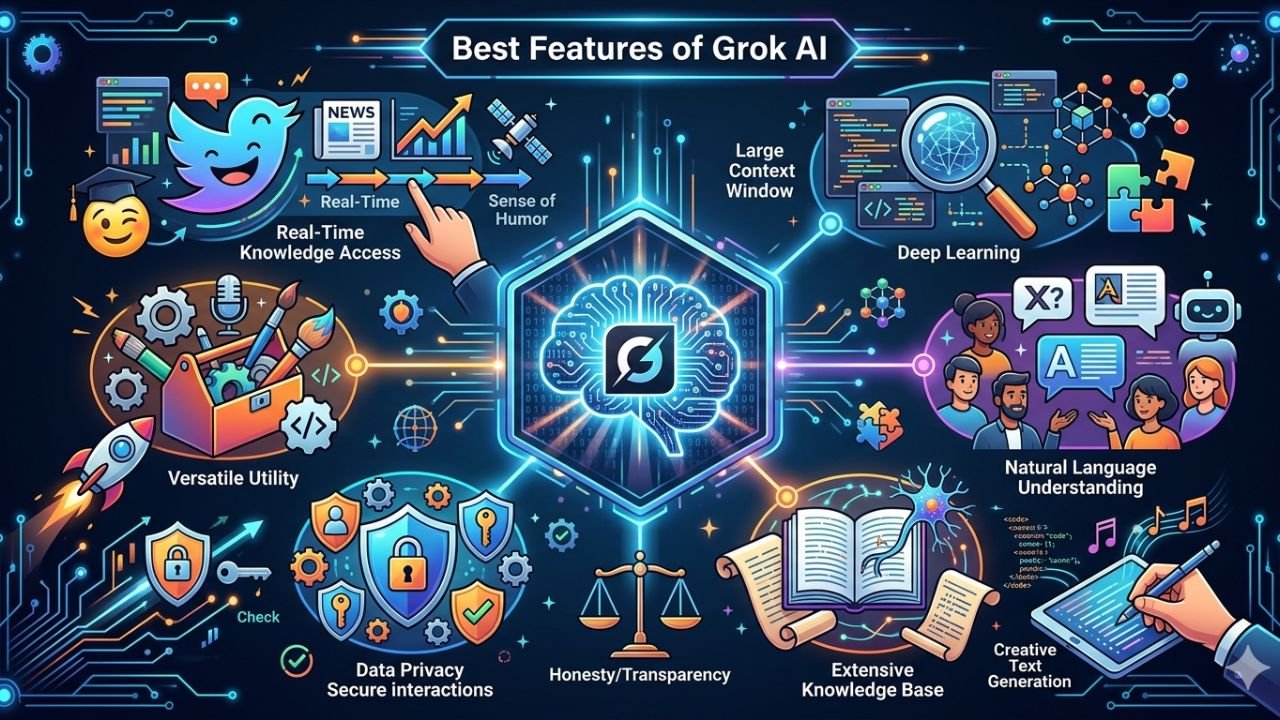
Also Read About: 7 Standout Best Features of Grok AI That Boost Productivity in 2026

 Admin
Admin